 Documentation
Connecting
WalletConnect offers two methods for establishing a connection: connect to a specific wallet, or display a selection dialog allowing the user to choose from available wallets.
Connecting to a Specific Wallet
Call the asynchronous connectToWallet() mtehod with the wallet name to connect to a specific wallet. Attempting to connect to a wallet that is not installed have no effect.
import { useWalletConnect } from "@btc-vision/walletconnect";

function App() {
    const {connectToWallet} = useWalletConnect()
    return (
        <button onClick={async () => { await connectToWallet('OP_WALLET')} } >Connect to OP_WALLET</button>
    )
}Display a Selection Dialog
Call the openConnectModal() mtehod to display a modal selection dialog. The dialog presents all supported wallets unless the supportedWallets property is configured to limit the available options.
Note: The ability to restrict supported wallets is currently in development.
import { useWalletConnect } from "@btc-vision/walletconnect";

function App() {
    const { openConnectModal } = useWalletConnect()
    return (
        <button onClick={() => { openConnectModal() } } >
            Connect to Wallet
        </button>
    )
}<WalletConnectProvider
theme='light'
recommendedWallet={'OP_WALLET'}
supportedWallets={['OP_WALLET']}>
<App />
</WalletConnectProvider>Login Window and Account Selection
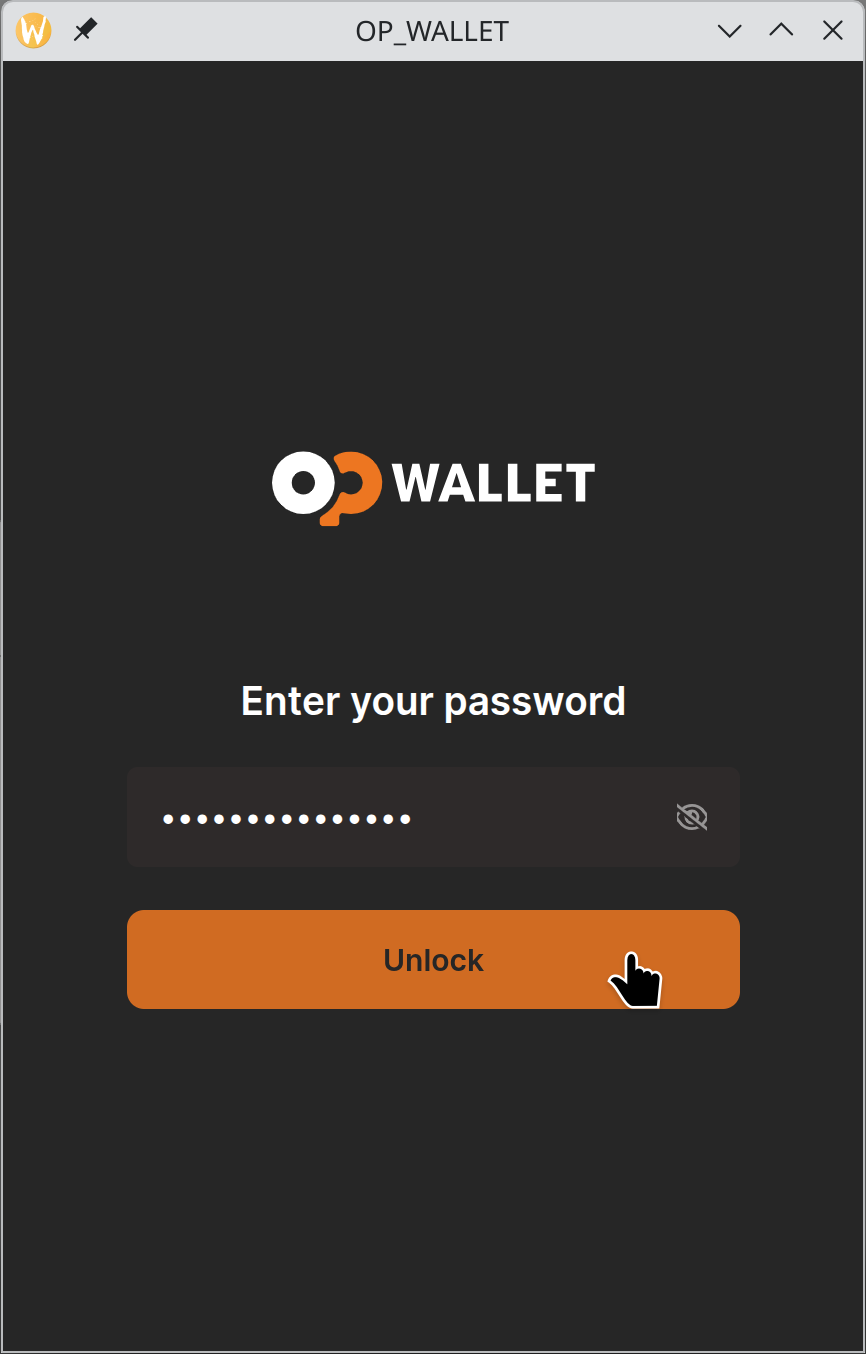
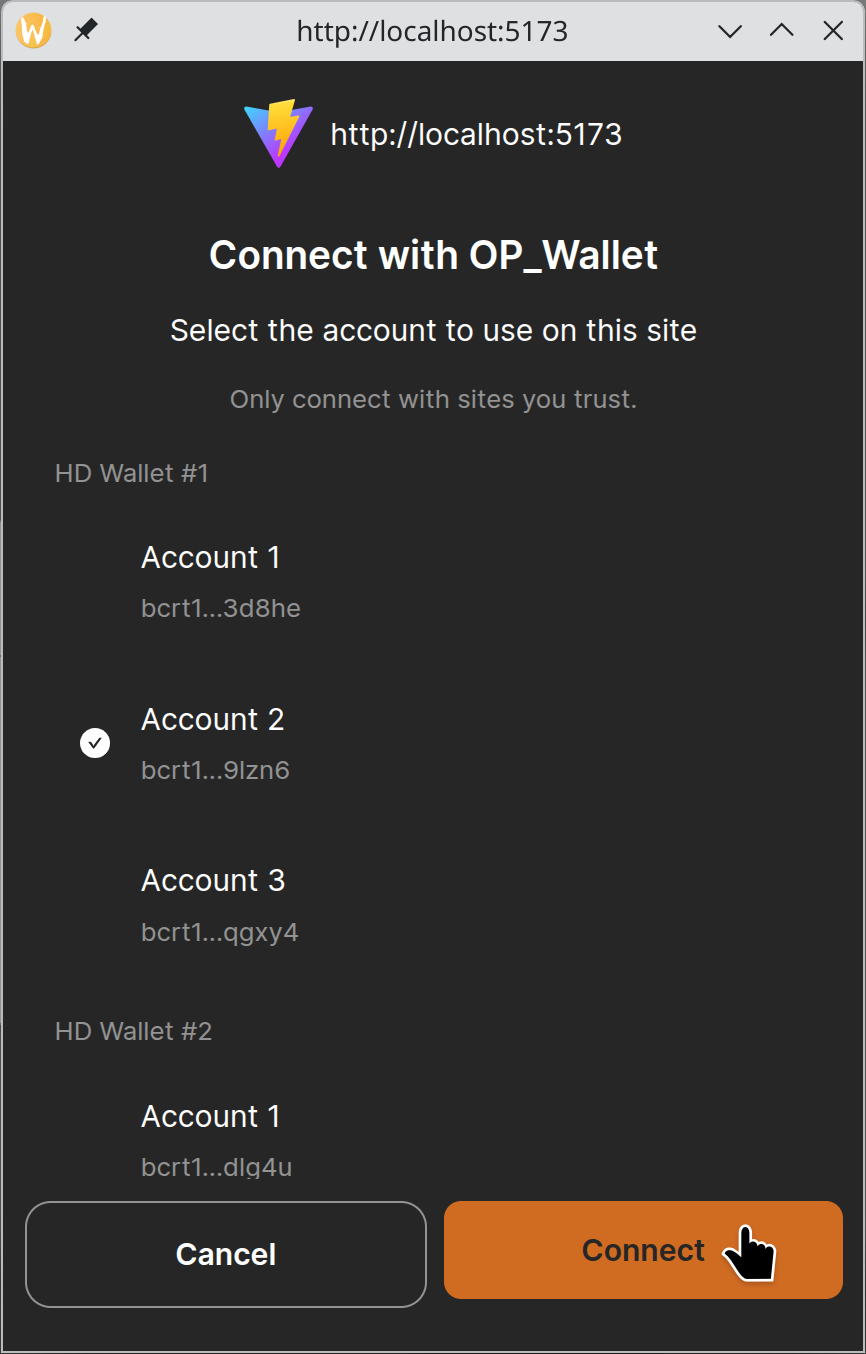
With both methods, the user is prompted to enter their password and select an account if multiple accounts are available.
The screenshots below shows the OP_WALLET login and account selection windows: